Print Proof Checklist: 12 Checks Before You Approve Production
Review file version, wording, numbers, layout, QR codes and production assumptions before approving a print proof.
Check the proof in four passes: file identity, wording and numbers, layout at final size, then production details. Mark every correction against one version, request a revised proof, and approve only the replacement file by name. A PDF proof can confirm visible content and layout, but it does not by itself confirm paper, colour, finishing, quantity or delivery arrangements.
In this guide
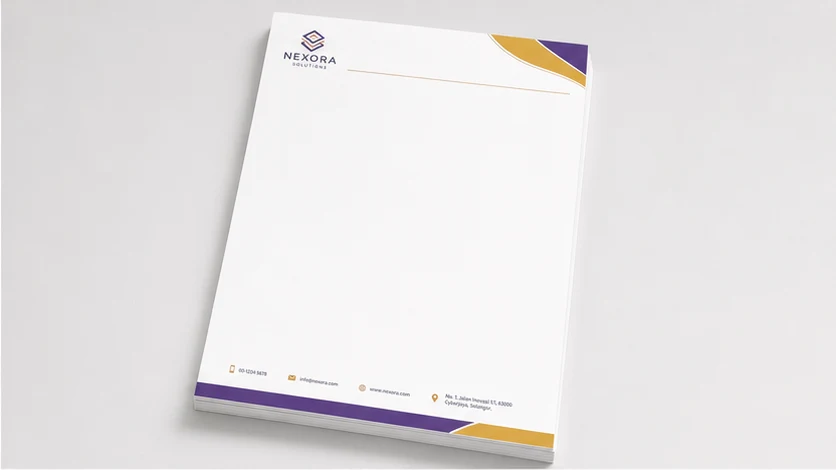
A proof can look polished while still carrying an old phone number, a missing page or the wrong finished size. On a small phone screen, those errors are especially easy to miss.
Before replying “approved”, review the exact file systematically and separate what the proof shows from production details that must be confirmed outside the artwork.
What is a print proof meant to confirm?
A print proof is a review stage before production. Depending on the job, it may be a PDF, a screen image, a printed sheet, a mock-up or another agreed sample. Each format answers different questions.
A PDF is useful for checking wording, page order, relative position, visible images and the supplied artwork version. It cannot prove how a particular paper feels, how a finish reflects light or exactly how colour will appear under every condition.
A physical or production sample may answer more about size, material, folding, binding or colour, but only if those points are within the quoted proof arrangement. Ask what the supplied proof is intended to confirm rather than assuming that “proof” means the same thing for every job.
Pass 1: confirm the file and job identity
Start before reading the design. Make sure the proof belongs to the intended item and order.
If the PDF does not show a production detail such as quantity or material, check it against the quotation or job summary. Do not assume the artwork is the complete specification.
- 1. Filename and version: is this the latest named file, not an older attachment?
- 2. Item and format: is it the correct name card, flyer, form, label or other item?
- 3. Finished size and orientation: are width, height, unit and portrait or landscape direction correct?
- 4. Pages and sides: does the file contain every expected page, front and back in the right order?
Pass 2: check content and high-risk details
Read for meaning once, then inspect details that are easy to skim past.
The printer can flag visible or technical concerns, but the person who owns the content should verify its accuracy. A clean preflight report cannot know that a date or account number is wrong.
- 5. Names and wording: compare company names, product names, headings and bilingual copy with the approved source text.
- 6. Numbers: check phone numbers, registration numbers, prices, dates, times, quantities and addresses one character at a time.
- 7. Codes and links: test QR codes from the actual proof where possible and inspect URLs, email addresses, SKUs or reference numbers.
- 8. Spelling and punctuation: check capitalisation, accented characters where present, symbols and line breaks, especially where text was copied from another file.
Pass 3: inspect layout at the intended size
View the complete page first, then zoom in. If the item is small, print the proof at 100% on ordinary paper as a size check, while recognising that this is not a colour or material sample.
For folded or multi-page work, trace the reading sequence. For numbered forms, confirm the starting number and copy structure separately because a single visual page may not demonstrate the full production sequence.
- 9. Reading order: can the main message, supporting detail and action be understood in the intended sequence?
- 10. Edges and folds: are essential text, logos, borders and codes clear of trim, fold, perforation or binding areas shown for the job?
- 11. Images and logos: look for pixelation, clipping, distortion, missing elements, unwanted boxes and weak contrast.
- 12. Alignment and consistency: compare repeated contact details, margins, page numbers, table columns and bilingual versions.
Use one correction ledger, not scattered messages
Put corrections in a short list that identifies the location, current text and required replacement. Avoid directions such as “move it a bit” or “use the earlier logo”.
After corrections, review the revised proof from the beginning. A small edit can affect line breaks, spacing or page flow elsewhere.
- Front, footer — phone ends 8083 — replace with approved number ending 8088 — revise.
- Back, QR area — old campaign URL — replace with supplied current URL and retest — revise.
- Page 2 heading — approved wording shown — no change — approved.
Worked example: a two-sided A5 flyer
Imagine an A5 event flyer with English on the front and Bahasa Malaysia on the back. The first proof is called event-flyer-v03.pdf.
The reviewer confirms two pages and A5 portrait orientation, then checks phone numbers, dates and venue details character by character. The Malay date is still from the earlier draft, and the QR code opens an old form. Both corrections are recorded against v03.
The replacement arrives as event-flyer-v04-proof.pdf. The reviewer repeats the content and layout checks, confirms the two corrected items, and approves that exact filename. Paper, quantity, finish, required date and fulfilment remain subject to the accepted quotation rather than being inferred from the PDF.
This is an explanatory scenario, not a Seri Jadi customer or completed job.
Copy-and-send proof response
Use “approved for production” only when that is genuinely your decision for the named version. If anything remains unclear, request a revised proof or written clarification instead.
For a printing enquiry, use Seri Jadi’s commercial printing page or contact page. If the source file is still being prepared, first use the broader print-ready artwork guide.
Select the text to copy, then fill in the relevant details. This template does not send a message or approve a job.
Frequently asked questions
Is approving a PDF the same as approving a printed sample?
No. A PDF can confirm visible content and layout, while a physical or production sample may reveal more about size, material, finishing and printed colour. Confirm what the supplied proof format covers for the job.
Will the printer catch every typo?
No. A printer may identify technical or visible issues, but the content owner should verify names, numbers, dates, wording and regulatory or recipient requirements before approval.
Should I approve through a chat message?
A short message can work if it names the exact file and decision clearly. Avoid a bare “ok” after several attachments. State either that the named version is approved for production or that a revised proof is required.
Further reading
Send the item, finished size, quantity, artwork status, required date and postcode through Seri Jadi’s printing or contact page so the job-specific proof and production details can be reviewed.