RGB vs CMYK Printing: Why Screen Colours Can Print Differently
Understand RGB vs CMYK for printing, why bright screen colours can shift, when to convert, how to soft-proof and what colour details to send.
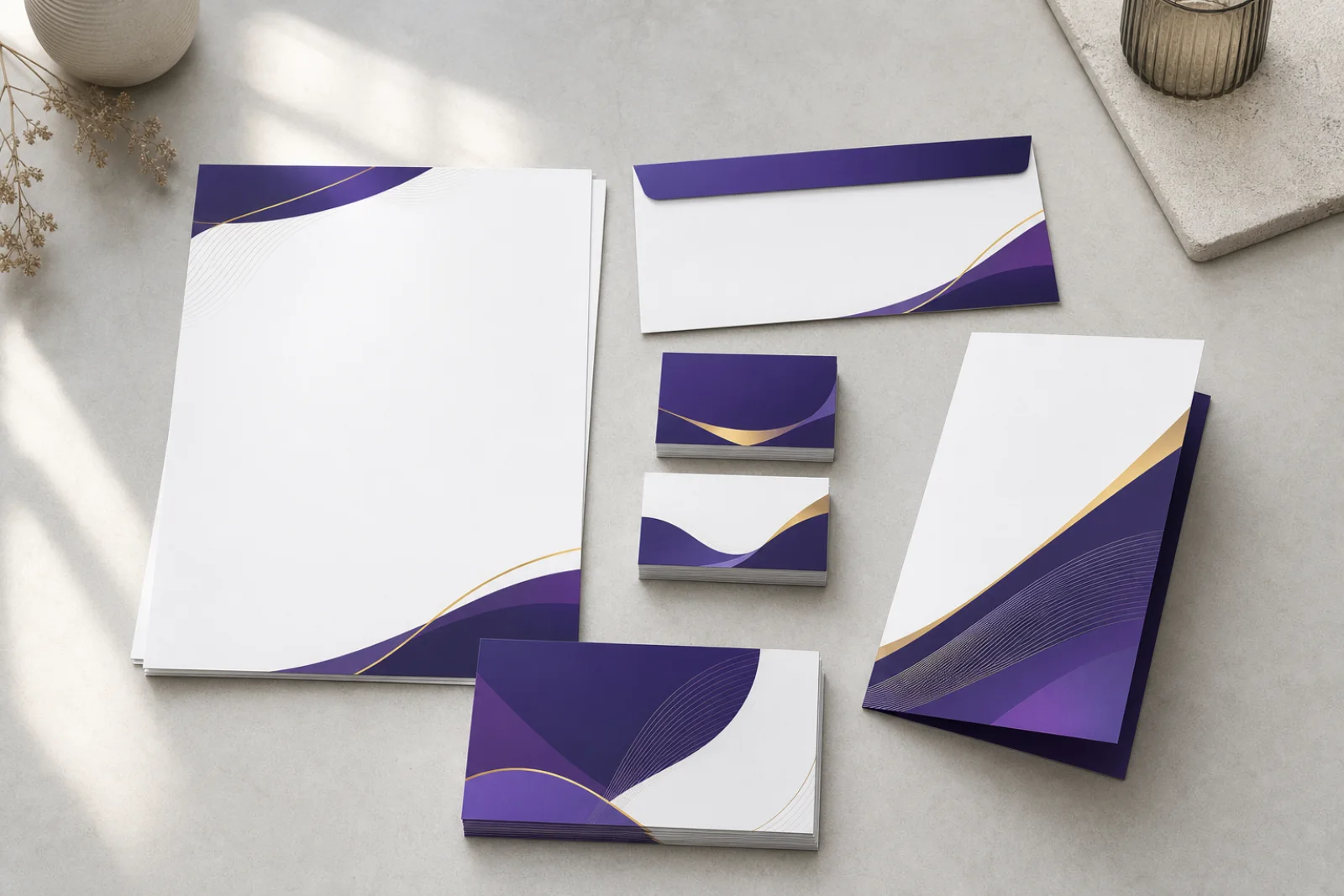
A logo can look bright on a phone, then feel duller or darker on a printed card, label or banner. That does not automatically mean the file or print is defective.
Screens and printing systems create colour in different ways, while the material, machine, profile and lighting also affect the result.
RGB describes colour made with red, green and blue light on screens. CMYK describes colour built with cyan, magenta, yellow and black inks or toners in many print workflows. Some bright RGB colours cannot be reproduced exactly in a given CMYK printing condition, so confirm the printer's file requirements, convert with the intended profile and assess an appropriate proof rather than trusting one screen.
What matters most
- Keep an editable master before changing colour mode or flattening artwork.
- Ask which colour space, profile and export preset the actual job requires.
- Expect some highly saturated screen colours to shift when converted for print.
- Judge colour with the agreed proof route, material and viewing conditions in mind.
- Send brand references and priorities instead of asking for an undefined same colour.
What is the practical difference between RGB and CMYK?
RGB devices add coloured light. With more light, the display moves towards white; a modern screen can show bright blues, greens and other saturated colours that attract attention online. Its appearance still changes with brightness, display quality, calibration and room lighting.
CMYK printing places coloured inks or toners on a physical surface. The achievable range depends on the press or printer, ink set, paper or vinyl, profile, finishing and viewing light. A coated sheet and an uncoated sheet can make the same artwork feel different because the surfaces handle colour and contrast differently.
This is why use CMYK is not a complete production instruction. A colour space without the intended output condition or profile leaves important information unresolved.
Should artwork always be converted to CMYK before sending it?
Not always. Some printers ask for a particular CMYK profile or PDF preset. Other production systems accept RGB elements and perform a controlled conversion for the selected device and material. Converting too early with a guessed profile can discard colour information or create a second conversion later.
Ask the supplier what to send for that product. Keep the original editable RGB artwork, linked images and brand references. Then prepare the delivery file according to the confirmed workflow. If the file is already CMYK, identify the embedded profile instead of assuming every CMYK file describes colour the same way.
Which colours usually need the closest attention?
Very bright cyan, green, blue, purple and fluorescent-looking screen colours often deserve an early check. Deep shadows can also lose separation, while neutral greys may pick up an unwanted colour cast if the conversion or print condition changes.
Do not fix this by typing arbitrary CMYK percentages from an online converter. Ask whether the converted colour still performs its job: Is the logo recognisable? Is small text readable? Are two chart categories still distinct? Does a warning panel retain enough contrast?
If one brand colour is critical, provide its documented reference and explain where it matters most. The printer can then advise on the practical proof or production route for that job. No uncontrolled laptop or phone screen can guarantee an exact printed match.
How should you preview a screen design for print?
Use colour-managed software and the output profile requested for the job. A soft proof can simulate the expected print condition on a calibrated display and can flag colours outside that output gamut. It is a preview, not the printed object: screen calibration, paper colour, texture, ink and viewing light still matter.
For colour-sensitive work, ask what proof options are appropriate. A digital PDF proof is useful for wording, position and page order, but it may not prove final colour. A physical or contract proof may provide better colour evidence, although its purpose, cost and relationship to the production device must be confirmed in the quotation.
Worked example: a brochure and banner use the same brand colours
Imagine one design uses a vivid cyan headline, orange button and dark photograph. It will become an A4 brochure and a large banner.
The aim is not to make two unlike materials behave identically. It is to preserve the intended hierarchy and achieve an acceptable, agreed result for each product.
- Keep the editable master and original photograph.
- Record the approved brand references and identify cyan as the highest-priority colour.
- Ask for the brochure and banner colour and profile requirements separately because paper and banner material use different output conditions.
- Convert or export each delivery file using the confirmed instruction; do not reuse one guessed conversion for both.
- Soft-proof the cyan, orange, skin tones and shadow detail.
- Request the proof route appropriate to each item, then approve content and colour expectations separately.
A copy-and-send colour and artwork brief
Send enough information for the printer to confirm the correct file, conversion and proof route before production. Scope, price, timing, revisions and proof arrangements remain specific to the individual job.
- Product and finished size: item, width x height.
- Quantity and material, if known.
- Supplied file: AI, PDF or other, with RGB, CMYK or unknown profile.
- Brand colour reference and the colour-critical area.
- Previous printed reference: available or not available.
- Required date and postcode for job-specific confirmation.
- Ask the printer to confirm the colour space, profile, export preset and proof route.
Frequently asked questions
Will converting an RGB file to CMYK make it print exactly like my screen?
No. Conversion maps colours into an intended output condition, but the display, profile, printer, ink, material, finishing and viewing light still affect appearance. Use the confirmed profile and proof route instead of treating one screen as the final standard.
Is a PDF automatically CMYK and ready for print?
No. A PDF can contain RGB, CMYK, spot colours or mixed content, and it can still have other production issues. It must be checked against the actual printer's specification.
Can the same CMYK values look different on different materials?
Yes. Paper shade, coating, vinyl, ink or toner, device and finishing can change the visible result. Confirm the material and colour-critical areas before approving production.
Sources consulted
Sources support the general guidance; the final choice still depends on the actual job.
- Google Autocomplete Malaysia: rgb vs cmyk printing
- Printing with color management in Adobe Illustrator
- Understanding color management in Adobe Photoshop
- Soft-proof colors in Adobe Photoshop
- Graphic Design and Print Artwork in Sungai Petani — Seri Jadi
- Graphic Design and Artwork Cetakan di Sungai Petani — Seri Jadi
- Printing Services Sungai Petani — Seri Jadi
- What Does Print-Ready Artwork Mean? — Seri Jadi
Send Seri Jadi the item, finished size, quantity, material if known, original files, colour profile, brand references, colour priorities, required date and postcode. The file requirements, artwork scope, proof route, price and timing are confirmed for the actual job.
WhatsApp +60 10-451 8088